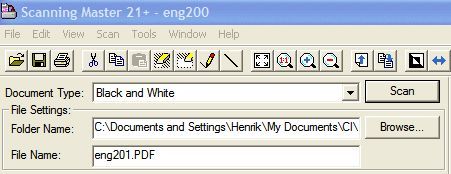
To scan simply select the document type with the
scan Tools and click the [Scan] button. Scan settings
are preset for each document type. You can add, delete
or modify document types.
To add or modify a document
type
Select the Scan command from the Scan
menu or click the [Scan] button on the toolbar.
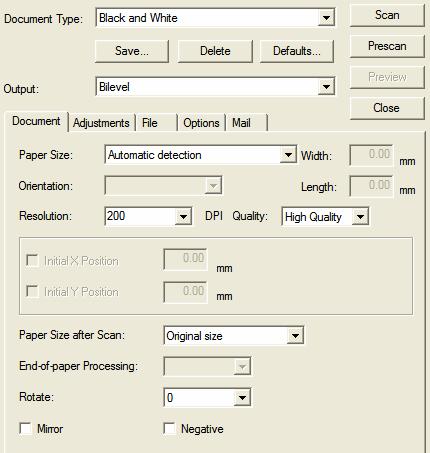
Change the settings in the Scan window.
Prescan or preview to set optimum scan conditions.
Click the [Save...] button to name and save a scan
settings.
Click the [Close] button to close the Scan
window.
The saved scan settings are added to the document types
in Scan Tools.
To delete a document
type
Select the Scan command from the Scan
menu or click the [Scan] button on the toolbar.
In the Scan window select the document type
you want to delete and the click the [Delete] button.
Click the [Close] button to close the Scan
window.
Ejecting a Document
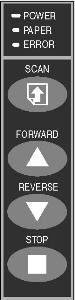
If you want
to eject the document, press the [FORWARD] or [REVERSE] key to eject the
document.